5 WordPress Design Mistakes Slowing Down
Your Site (Fix in 2026)
Introduction:
A slow website kills conversions. 53% of mobile users abandon sites that take over 3 seconds to load. Even worse, a 1-second delay can reduce sales by 7% —for a $100,000 monthly store, that’s $7,000 lost every month. However, most website owners blame hosting. But that’s not actually true.
In reality, beautiful designs often come with hidden costs—bloated code, unoptimized images, and excessive HTTP requests that choke your site’s performance.
Today, You’ll see 5 common WordPress design mistakes that killing your WordPress speed optimization efforts—and show you exactly how to fix each one.
Let’s dive in.
1: Unoptimized Images – The Silent Speed Killer
Without question, unoptimized images are the primary cause of slow WordPress websites. I’ve audited sites where the homepage alone contains 15 images, each weighing 2-3 MB. As a result, that’s 30-45 MB of data every visitor must download just to view your homepage.
Here’s what typically happens:
First, you capture high-resolution photos with your DSLR or smartphone (8-12 MB each). Next, these massive files are uploaded directly to WordPress without any compression. Consequently, WordPress generates thumbnails but preserves the original bloated file. Therefore, your pages load slowly, visitors bounce, and Google penalizes your rankings.
Furthermore, heavy images are the top contributor to poor Core Web Vitals scores, particularly Largest Contentful Paint (LCP).
How to fix it?
Choose the Right Format
· Use WebP format instead of JPEG or PNG. These files are 25-34% smaller without quality loss.
· PNG should only be used for images requiring transparency (logos, icons)
· JPEG works for photographs, but always compress them
Compress Before Uploading
Don’t rely on WordPress’s built-in compression. Use professional tools:
· TinyPNG / TinyJPG – Free online compressor
· Alternatively use, Squoosh.app – Google’s free tool
· For professionals, Adobe Photoshop with “Save for Web” at 60-70% quality works well
Automate with Plugins
Install one of these plugins for ongoing optimization:
· Smush – Compresses up to 50 images at once
· Imagify – Offers automatic WebP conversion
· Also consider ShortPixel – Excellent compression quality
Enable Lazy Loading
Lazy loading ensures images load only when they enter the viewport. WordPress has built-in lazy loading since version 5.5—verify it’s enabled.
2: Plugin Overload – The Feature Creep Trap
WordPress offers over 60,000 plugins. It’s tempting to install one for every feature. Contact form? Install a plugin. SEO? Install a plugin. Social sharing? Install a plugin. Analytics? Install a plugin.
Before you realize it, you have 40, 50, or even 60+ active plugins.
Here’s why this matters:
To begin with, each plugin adds additional CSS and JavaScript files to load. Additionally, they create extra database queries on every page visit. Moreover, they introduce potential conflicts with other plugins. Finally, outdated plugins create security vulnerabilities.
The worst offenders load scripts globally across your entire website—even when only needed on specific pages. For example, a contact form plugin might load its CSS on every single page, including blog posts with no forms.
How to fix it?
Audit Your Plugins
Go to Plugins > Installed Plugins and ask:
· Do I actually use this plugin?
· Does it serve a critical function?
· Can my theme replace this plugin?
Deactivate and delete everything non-essential.
Consolidate Functions
Instead of separate plugins, use all-in-one solutions:
· Rank Math or Yoast SEO – SEO + social media + schema
· Jetpack – Multiple features in one package
· Wordfence – Security + firewall + malware scanning
Use Conditional Loading
Plugins like Asset CleanUp or Perfmatters disable scripts on pages where they’re not needed.
Check Plugin Performance
Use Query Monitor to identify resource-heavy plugins. Remove the worst offenders.
3: Heavy Page Builders – The Convenience Curse
Page builders like Elementor, Divi, and WPBakery have made WordPress design accessible. However, they come with a heavy cost: bloated, inefficient code.
Here’s what happens behind the scenes:
First, the builder generates hundreds of lines of inline CSS. Additionally, it loads JavaScript for every module. Furthermore, it processes dozens of shortcodes dynamically. Consequently, each element creates multiple nested divs with inline styles.
As a result, a simple “About Us” page built with Elementor might be 10-20x heavier than the same page built with Gutenberg.
How to fix it?
Switch to Gutenberg
WordPress’s native block editor has improved dramatically. With blocks plugins like Kadence Blocks or GenerateBlocks, you can create beautiful designs without the bloat.
Choose Lightweight Themes
If you must use a page builder, pair it with a performance-optimized theme:
· GeneratePress – One of the fastest themes available
· Astra – Highly optimized
· Kadence Theme – Great performance
Minimize Builder Usage
· Use page builders only for complex pages (homepage, landing pages)
· Use Gutenberg for blog posts and standard pages
· Avoid builder widgets for simple text paragraphs
Clean Up Elementor Settings
· Go to Elementor > Settings > Features
· Disable features you don’t use
· Enable “CSS Print Method” to “Internal Embedding”
· Disable “Improved Asset Loading” if it causes issues
4: No Caching Strategy – Every Visitor Starts From Zero
When a visitor accesses your WordPress site, the platform performs several operations.
First, it retrieves page content from the MySQL database. Next, it executes PHP scripts to generate HTML. Then, it combines CSS and JavaScript files. Finally, it generates the final page output for delivery.
However, this process repeats for every single page request without proper caching.
A single visitor’s page load might involve 20-50 database queries. To illustrate, for 1,000 visitors in an hour, that’s 50,000 database queries—placing enormous strain on your server.
How to fix it?
Install a Caching Plugin
· WP Rocket – Premium, easiest configuration, outstanding performance (recommended)
· LiteSpeed Cache – Free, excellent for LiteSpeed hosting
· W3 Total Cache – Free, feature-rich but complex
Enable Page Caching
This creates static HTML versions of your pages, bypassing PHP and database queries entirely.
Enable Browser Caching
Tells visitors’ browsers to store files locally. On return visits, files load from their device instead of your server.
Use a CDN
CDNs store copies of your site worldwide. Visitors receive data from the closest server.
· Cloudflare – Free plan available
· KeyCDN – Affordable
· Bunny CDN – Fastest in many tests
5: External Embedded Media – The Hidden Request Monster
Your modern website requires external resources to function properly, like Google fonts, Youtube Videos, Social Media widgets and external ad networks.
However, each external resource adds extra HTTP requests. Furthermore, if the external server is slow or experiencing downtime, your entire page waits before rendering.
The worst offenders include:
First, Google Fonts create multiple CSS requests for different font variants. Additionally, YouTube Embeds load heavy iframes with tracking scripts before user interaction. Moreover, Social Widgets load third-party scripts that block page rendering.
How to fix it?
Self-Host Fonts
Download fonts and host them on your own server. Use OMGF (Optimize My Google Fonts) plugin to handle this automatically.
Lazy Load Videos
Use loading=”lazy” attribute on iframes. Install Lazy Load for Videos plugin that replaces videos with preview images until clicked.
Remove Unnecessary Widgets
Audit social widgets honestly—do they actually generate value? Replace with static text links.
Limit Font Families
Stick to 1-2 font families maximum. Each additional font adds 50-100 KB of data.
How to Test Your Speed?
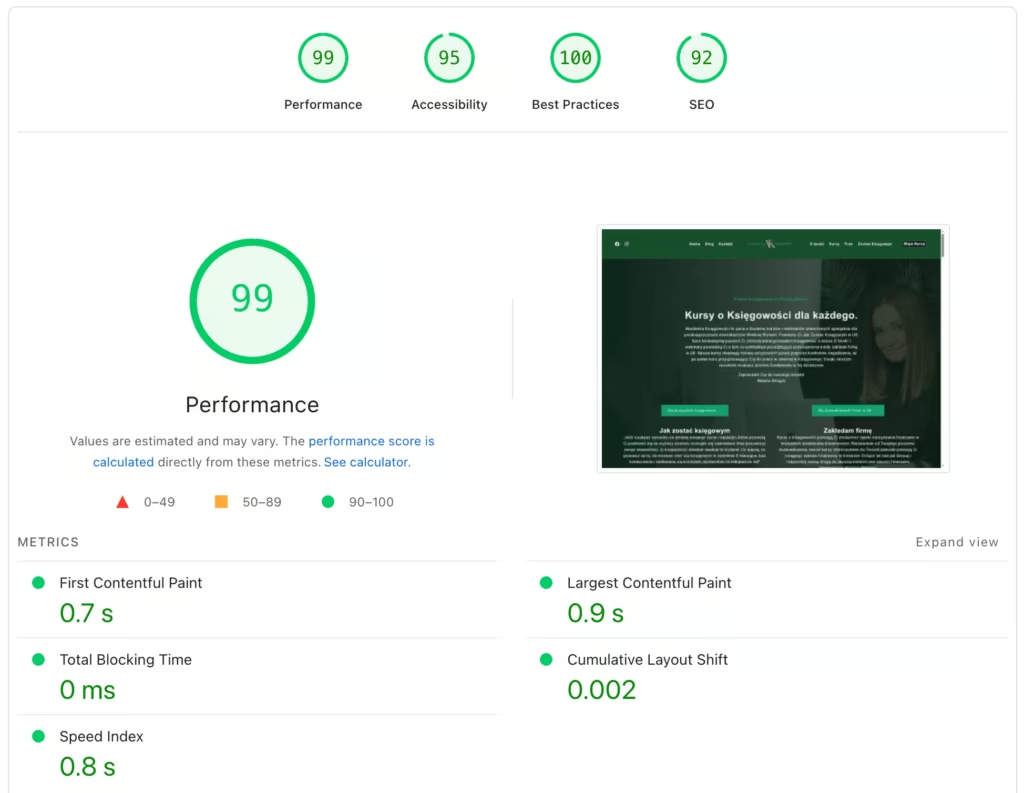
You can’t improve what you don’t measure. Before implementing any fixes, run a comprehensive speed test. This establishes a baseline so you can track your progress after making changes.
Recommended Tools
GTmetrix – Most detailed insights with waterfall analysis
Google PageSpeed Insights – Official Core Web Vitals tool
Pingdom Tools – Quick and simple
Testing Best Practices
Test from multiple geographic locations
Then test on both desktop and mobile
Run 3-5 tests and average the results
Need Professional Help?
Not confident implementing these fixes yourself? We offer WordPress speed optimization services. We’ll audit your site, fix all performance issues, and get your load time under 2 seconds—guaranteed.